Getting Started
merzing automates repetitive document work by filling values into placeholders you've marked ahead of time in Word (docx), PowerPoint (pptx), and Hangul (hwpx) documents.
Four core concepts
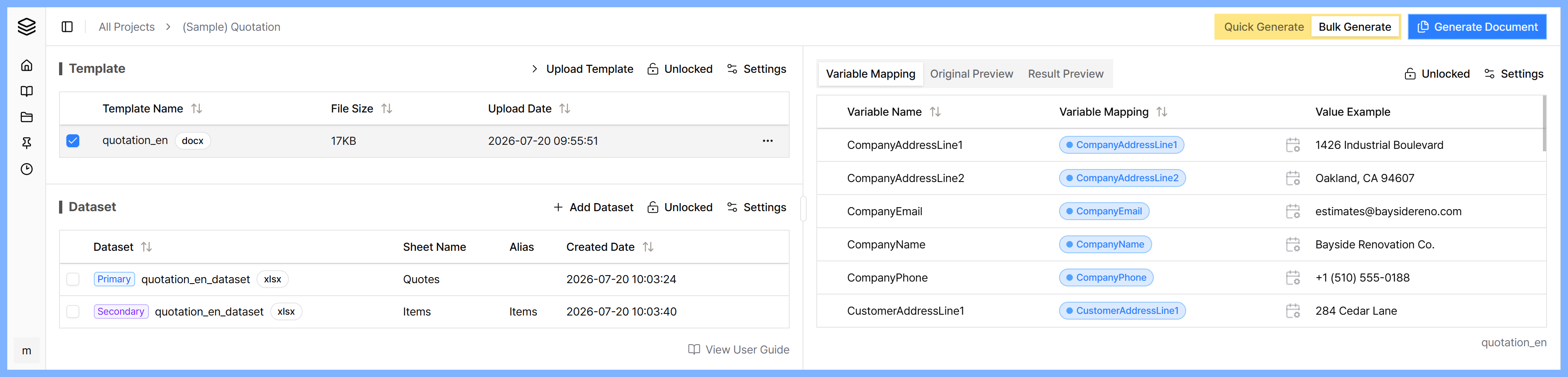
- Template: The source document file with placeholders marked using variable syntax (e.g. {Name}) wherever a value should be filled in. docx, pptx, and hwpx are all supported.
- Variable: When you upload a template, the variables marked inside it are detected automatically. If you're unsure about the syntax, read Template Variable Syntax first.
- Dataset: A spreadsheet file holding the data that gets filled into your template's variables when generating documents in bulk. xls and xlsx are supported, and it's used only in "Generate documents in bulk with a dataset" mode.
- Project: A workspace that bundles a template together with the values that will be filled into it.
Two ways to generate documents
Within a single project, you can freely switch between two approaches depending on what you need.
- Generate one document quickly with a form: Type values directly into on-screen fields and watch the result update live in the preview next to it. Ideal for one-off documents like a single contract or confirmation letter where values change each time. See Generate One Document Quickly with a Form for details.
- Generate documents in bulk with a dataset: Turn each row of a spreadsheet into one document. Ideal for producing dozens or hundreds of documents at once from a list of people or records. See Generate Documents in Bulk with a Dataset for details.
Not sure where to start? Try "Generate one document quickly with a form" first — you can see a real result immediately, without preparing a spreadsheet dataset.
Getting started, step by step
- Create a project.
- Upload a template file (drag and drop it onto the "Upload Template" area near the top of the screen, or click to select).
- Choose either "Generate one document quickly with a form" or "Generate documents in bulk with a dataset" from the tab at the top.
- Fill in values, check the preview, and generate the document.
You can trust this with your documents
All the work of filling values into your template happens entirely inside your browser. Neither the original document nor the actual values you fill in are ever sent to our servers.
That said, in the "Generate one document quickly with a form" screen, we also offer an optional Save to Server feature for cases where you want to load your input again later. Click the save-option button at the top of the form panel and switch it to "Save to Server" — from that point on, your input is encrypted and saved to the server, and you can retrieve previously saved values from the "Load" menu. This option is off ("Don't Save") by default, and until you turn it on, no values are ever sent to the server, just as before.