Managing Templates
How to rename an uploaded template, replace its file with a new version, or delete it once you no longer need it. All of these are available from the "more" menu on each row in the template list.
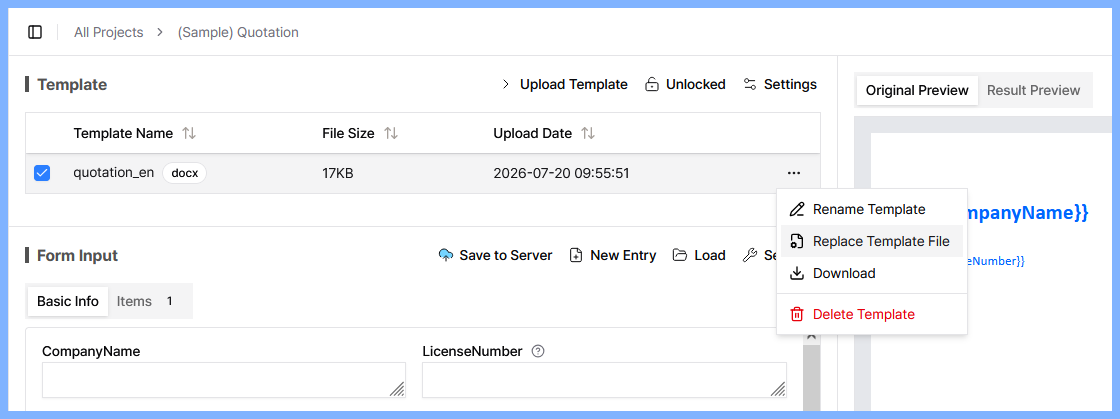
Renaming a template
Choose "Rename Template" from the "more" menu to change its display name. This doesn't affect the file itself or the variables inside it.
Replacing a template file
Once you're comfortable filling in a template, you may just want to tweak the underlying document's formatting a little. In that case, use "Replace Template File" instead of deleting the template and uploading it again from scratch.
Choosing "Replace Template File" from the "more" menu switches the upload area into replace mode. Select a single new file of the same file type (extension) as the existing template, and merzing shows you a comparison between the old and new variables.
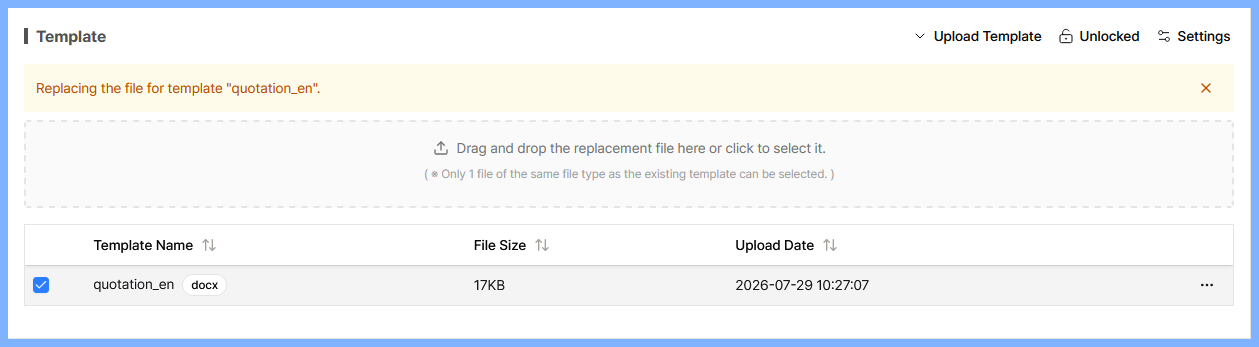
- Unchanged variables: Variables with the same name are kept as-is — along with any mappings and saved input history you've already set up for them.
- New variables: Variables that only exist in the new file are added.
- Removed variables: Variables no longer present in the new file are removed, along with any mapping or saved history tied to them.
Review the result and click "Confirm" to apply the replacement. The template's name and any existing saved values (for variables that stayed the same) are preserved afterward.
If a variable name changes even slightly (e.g. {QuoteNumber} → {Quote Number}), it's treated as removed-and-added rather than the same variable. Keeping variable names exactly the same while only changing the document's formatting is the safest way to preserve your mappings and history.
Deleting a template
Choose "Delete" from the "more" menu to delete a template. Deleting a template also deletes any variable mappings and saved form entry history tied to it, and this action cannot be undone. If you only want to change the file's contents, we recommend using "Replace Template File" above instead of deleting.
Locking templates
Use the lock icon in the template panel to lock the template list. While locked, regular members can't add, replace, or delete templates — only a workspace admin can unlock it and make changes. Use this to prevent a project's template setup from being accidentally changed when several people share a project.